
Remove audio from a video
Remove audio from video, free and in your browser. Drop in a video and download the same file with every audio track gone. No quality lost. On the default path, your video stays in your browser the whole way through, so you can remove audio from video without uploading anything.
- No quality lost
- Stays in your browser. No upload.
- If we cannot do it in your browser, you can choose the server. Files auto-delete after 24 hours.
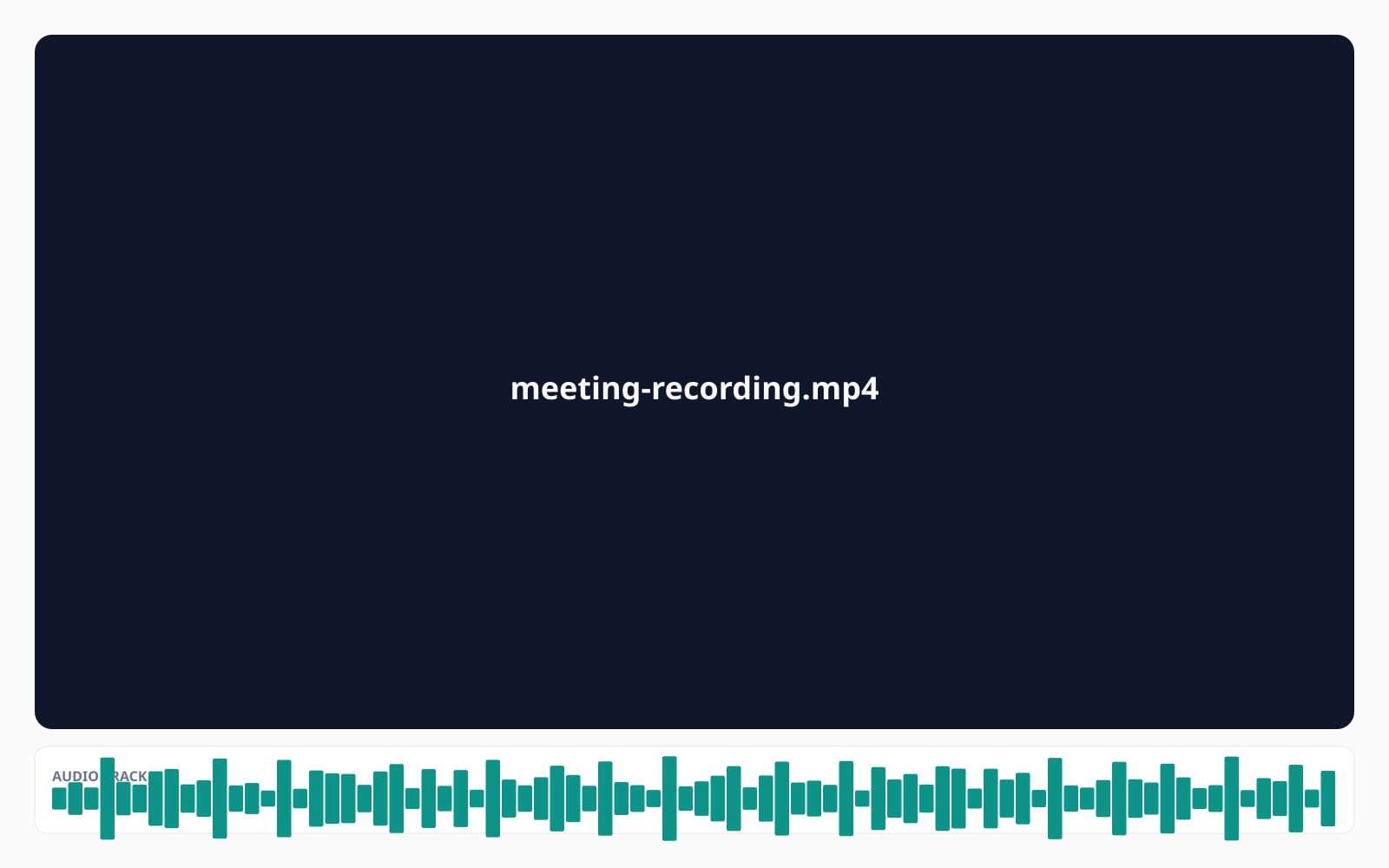
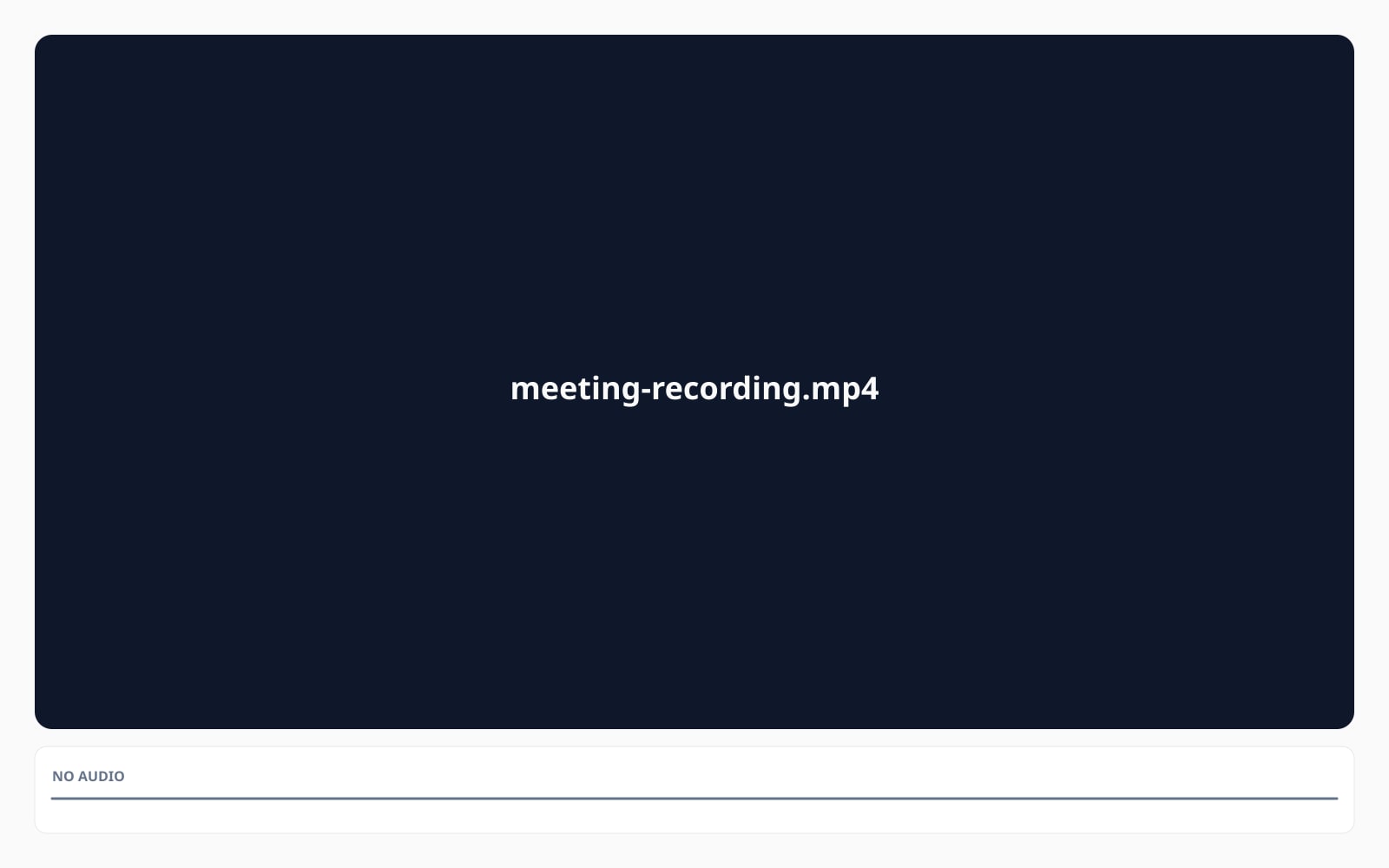
슬라이더를 드래그해 전후 비교
개요
This tool helps you remove audio from video in your browser, with no quality lost. You drop a video and you get back the same file with every audio track gone. The picture is the same, the subtitles are the same, the chapters are the same. The only thing that changes is the sound. This page exists for one job: remove audio from video, in your browser, with no quality lost.
On the default path, the work happens on your device. We run a tiny engine in your browser that opens the file, drops every audio track, and writes the muted file back out. Nothing is uploaded. The only network traffic is an anonymous analytics ping and the daily quota counter that limits free use. If you just want to silence a video before posting a clip somewhere, this is the path you want.
When your browser cannot do the work (older browsers, very large files, or an out-of-memory case partway through), you can opt into the server. The server uploads the file, runs the same kind of cleanup with our server-side tool, and deletes the file after 24 hours. We strip ALL metadata from your video on this path; we say so out loud because a server-path output has a different privacy profile than a browser-path output.
Subtitle tracks, chapters, and the main picture are kept on every path. Cover-art tracks (the second still-image video track some MP4 files carry) are dropped. Before you can download anything, the tool double-checks the output has zero audio tracks and one video track.
The short version
결정하기 전에 확인해야 할 수치와 장단점입니다.
What changes
We remove every audio track, including extra language tracks on multi-track audio removal cases. The picture and the subtitles are unchanged.
Where it runs
In your browser by default. The server option only kicks in when your browser cannot do the work, or when you choose it.
No quality lost
The video itself is unchanged. We do not compress it again, so the picture stays exactly as you uploaded it. You can remove audio from video without losing quality, which makes the tool a lossless mute video option.
Limits
Up to 1 GB on desktop, 300 MB on mobile. Up to 30 minutes free; 30 minutes to 2 hours uses the paid server option.
Free tier
10 successful runs per IP per day. The server option above 30 minutes uses 1 credit.
Retention
On the server option, the file is auto-deleted after 24 hours and the job record is anonymised after 30 days. On the default path, nothing is uploaded.
사용 방법
세 단계, 보통 5초 안에 완료됩니다.
- 1
Drop your video
MP4, MOV, M4V, WebM, MKV, or AVI. Up to 1 GB on desktop, 300 MB on mobile. Up to 30 minutes free, up to 2 hours on the paid server option. Mute MP4 files use the default browser path automatically.
- 2
We mute it in your browser
A small engine on your device opens the file, drops every audio track, and writes the muted version. The video itself is unchanged. No quality lost.
- 3
Quick check, then download
Before the download is unlocked, the tool confirms the output has zero audio tracks and one video track. Nothing was uploaded on the default path.
실제 결과 보기
각 슬라이더를 드래그해 전후를 픽셀 단위로 비교하세요.


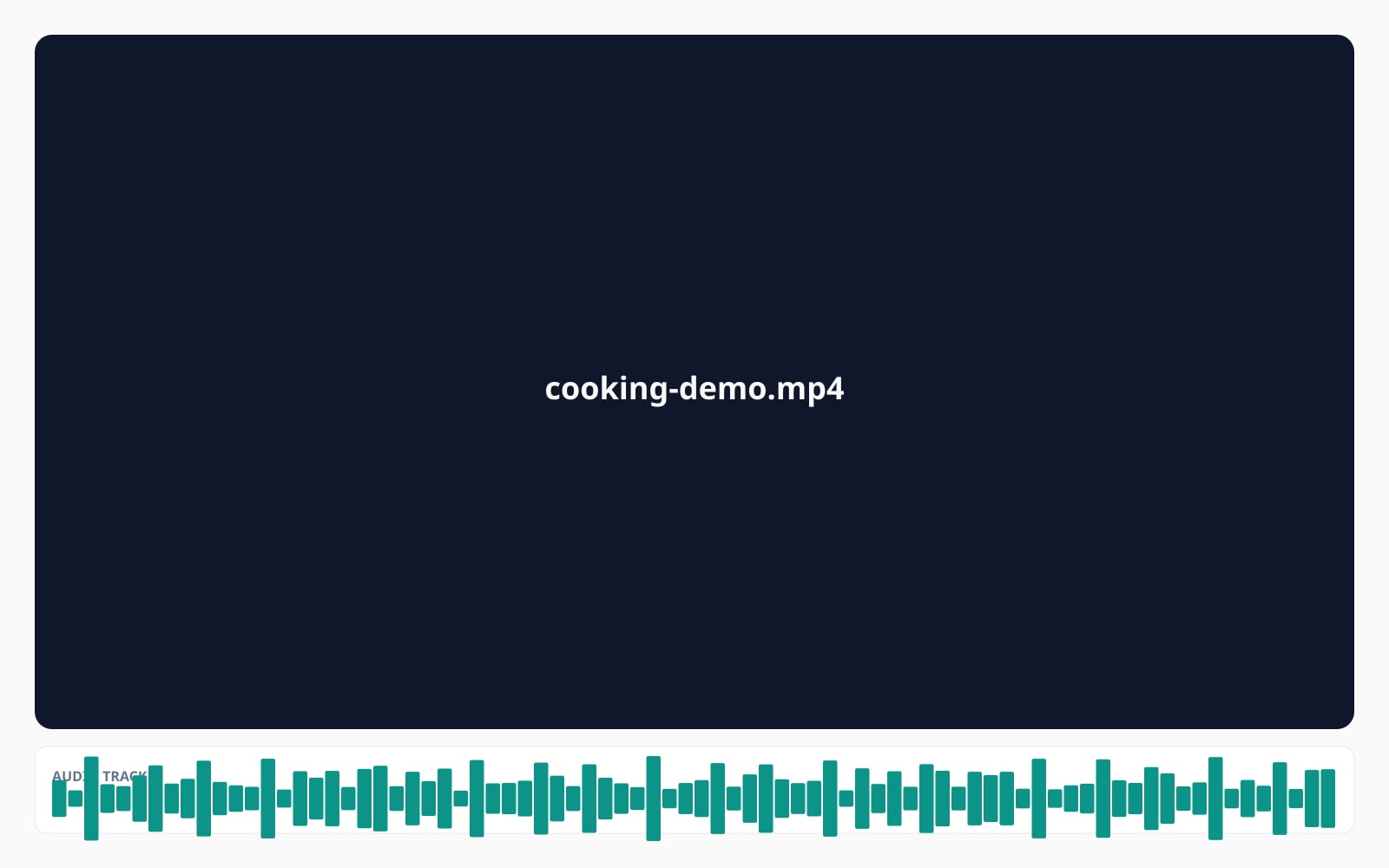
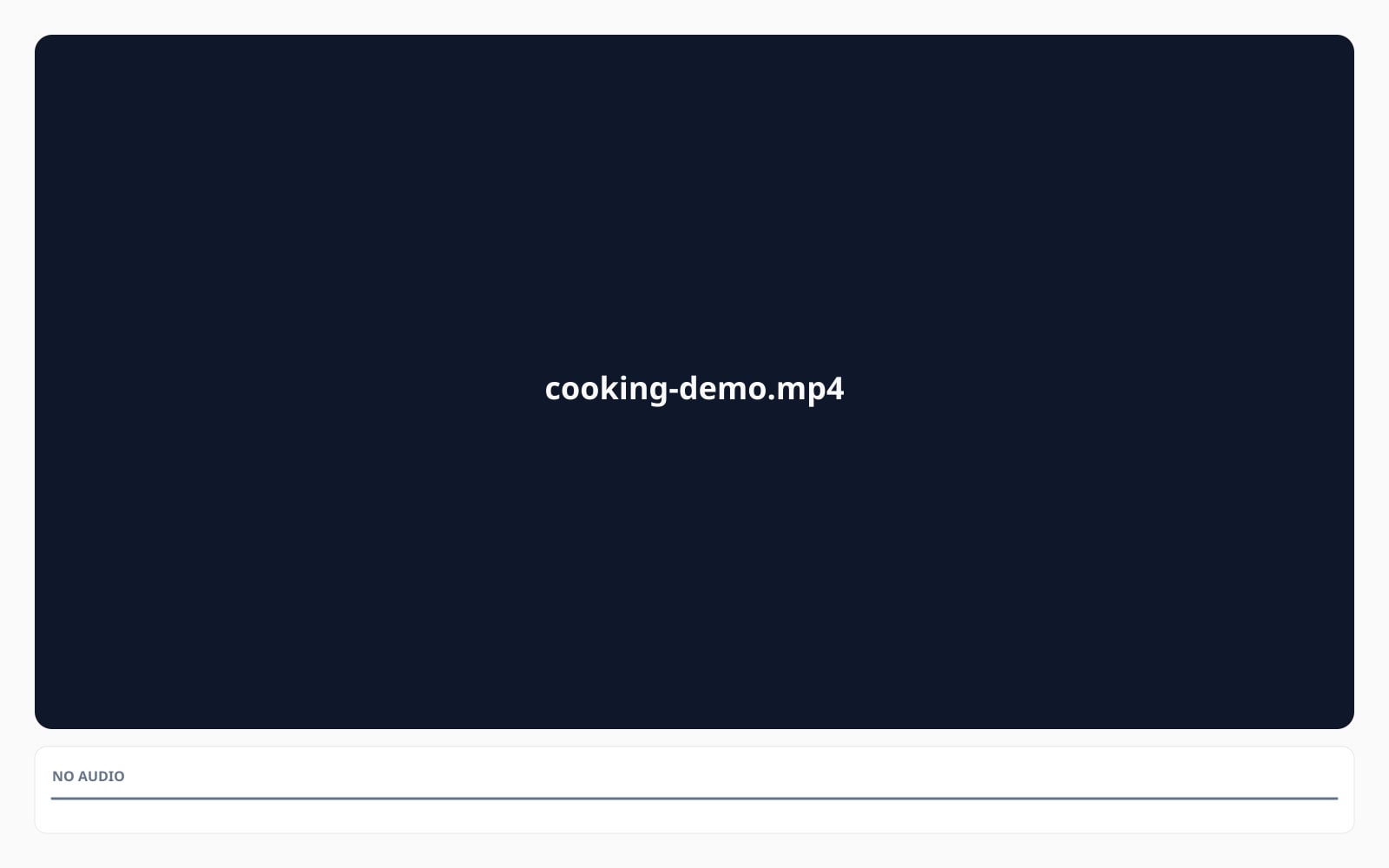
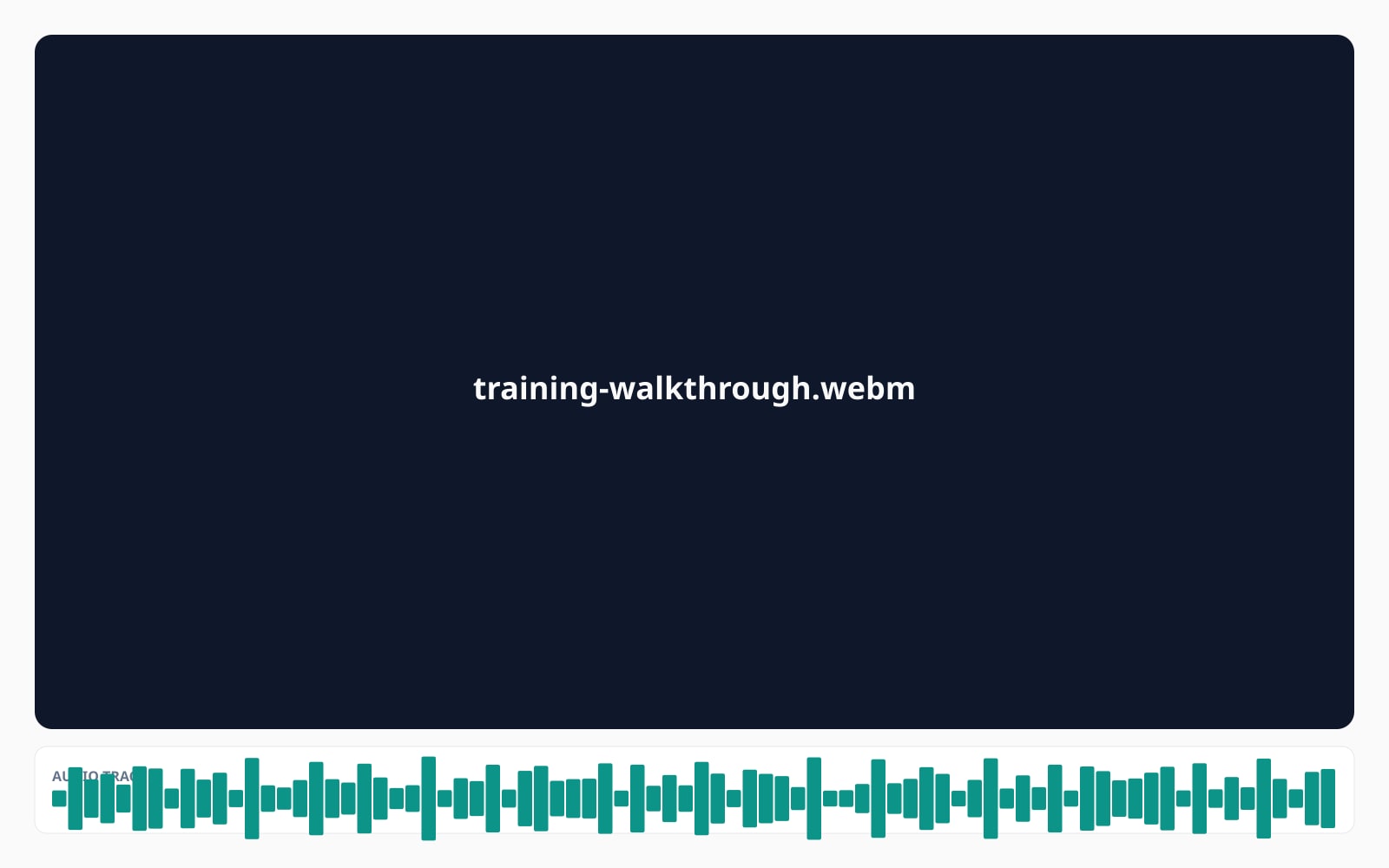
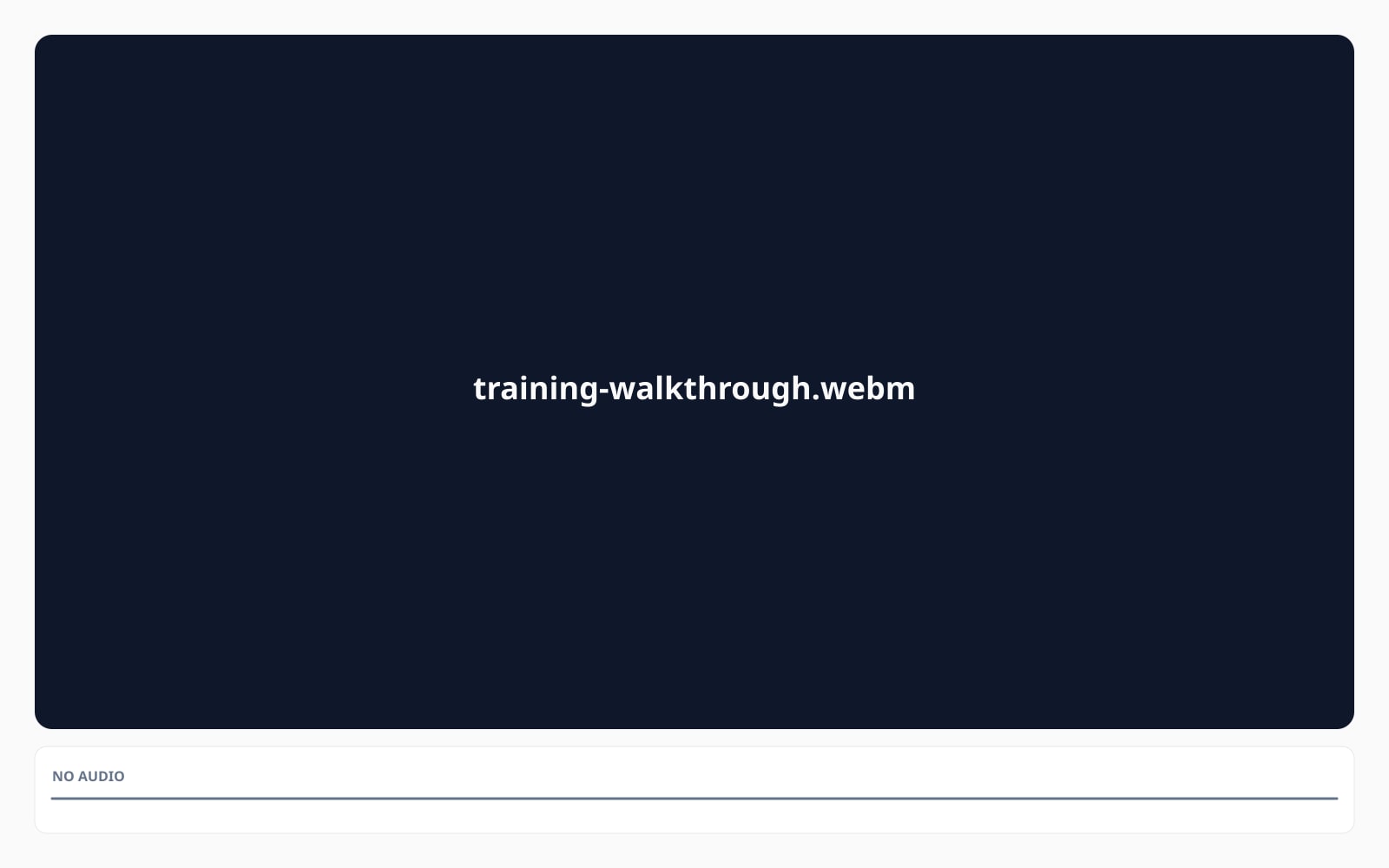
이미지는 작업이 끝나면 사라집니다
On the default path, your video stays in your browser. Our browser-based video muter opens the file, drops the audio, and saves the muted copy back out, all on your device; the only network traffic is anonymous analytics and the daily quota counter. When you choose the server option (or your browser cannot do the work), the file is uploaded, processed, and auto-deleted after 24 hours. The job record is anonymised after 30 days. We strip ALL metadata on the server path; the original on your device is never touched.
- 몇 초 안에 처리 완료
- 저장되지 않음
- 계정 연결 없음
Drop a video
One click. No signup. We'll do the rest.
Plain-English glossary
위 전문 용어에 대한 쉬운 설명입니다.
자주 묻는 질문
새 도구를 사용하기 전 대부분의 사람들이 묻는 질문에 대한 답변입니다.
관련 도구
이 이미지에 필요할 다른 작업으로 바로 이동합니다.
Remove the Veo watermark
Clean the visible Veo logo from a Google Veo clip. The picture around it is left alone, and the invisible AI tag stays inside the pixels.
Remove subtitles from a video , 출시 예정
Drop a video and download the same file with every subtitle track gone. Same idea as this tool, different track type.
Remove video metadata , 출시 예정
Strip GPS, camera, and editing details from a video without touching the picture or sound. Privacy hygiene before posting.
Related reading on muting videos and protecting your privacy
이 도구와 함께 사용하면 좋은 다른 도구입니다.
- How the video audio remover handles your file, in detailA walkthrough of how the muting works, what stays in your browser, and what happens when you opt into the server.
- Remove the Veo watermark from your AI clipsClean the visible logo from a Google Veo clip frame by frame. The invisible AI tag stays in place.
- Strip EXIF from a stillIf you grab a thumbnail from your muted clip, scrub the camera, GPS, and device data on it before posting.
- Privacy and how long we hold thingsEuropean storage on the server option, 24 hour auto-delete, 15 minute download links, and the rights you have over your data.
- Terms and what you agree toThe personal-use posture, age confirmation, and the short list of things we will not process.
- Pricing for longer clips and the server optionFree covers up to 30 minutes and 10 successful runs per day. The server option uses 1 credit for clips over 30 minutes.
인용 또는 공유하시겠습니까?
제목, 설명, FAQ, 정규 URL, 인용 정보가 담긴 간결한 Markdown 요약을 복사하여 AI 도구나 문서에 바로 붙여넣으세요.